

AI is changing printing
Here are the main pitfalls we often see when people use AI tools (ChatGPT, Canva AI, Adobe generative tools, online “design to PDF” platforms) to create files they believe are print-ready.
‘AI can be brilliant for speed and creativity, but print is
unforgiving. Small technical errors become
expensive, visible problems.’
Wrong colour space (RGB pretending to be print colour)
Pitfall: AI-generated graphics and most web-first tools output RGB. On screen it looks right; in print it can shift, dull, or oversaturate.
Watch for: neon brand colours, deep blues, bright oranges, gradients.
Do instead: build final artwork in CMYK workflow where possible, or export to a print PDF spec your printer supports (often PDF/X). Ask for a proof if colour is brand-critical.
Low resolution i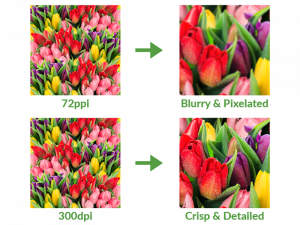 mages and “fake detail”
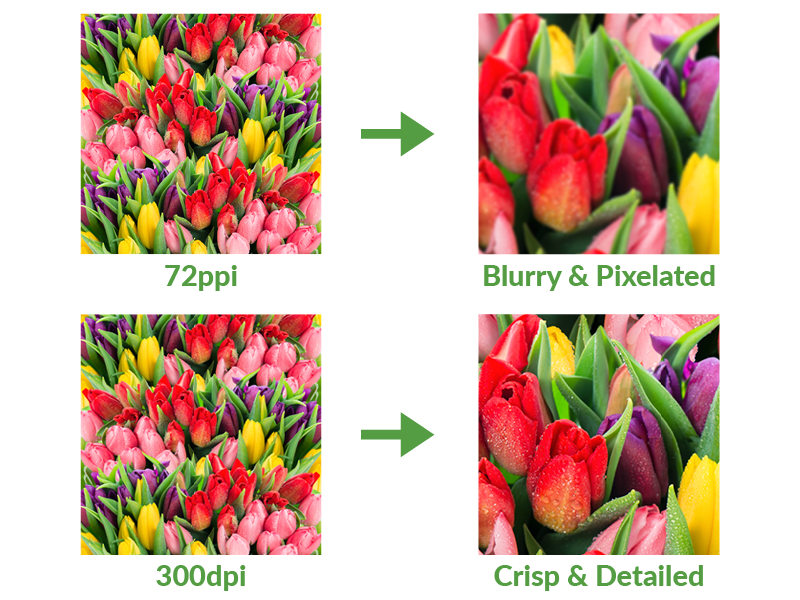
Pitfall: AI images can look sharp on screen but are often effectively low-res. Up-scaling can add “detail” that turns into texture noise in print.
Watch for: soft edges, noisy shadows, smeared typography inside images, banding in gradients.
Do instead: aim for 300 dpi at final size for images. Avoid using AI to generate images that include small text.
No bleed, wrong document size, or trim confusion
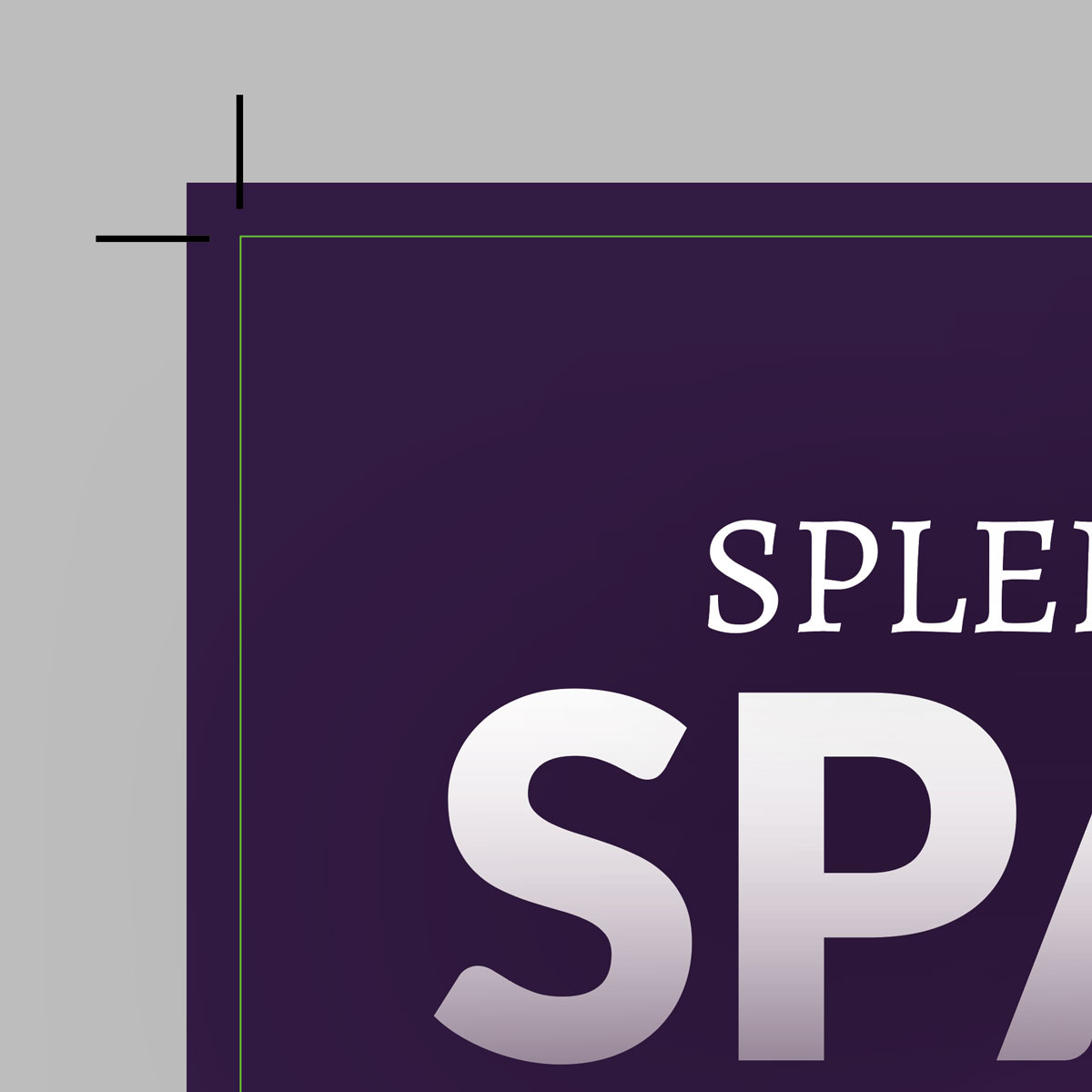
Pitfall: AI will happily design a poster “A4” with no bleed and put key content right on the edge.
Watch for: anything near the edge, backgrounds that should run off the page.
Do instead: set up the document at the exact finished size plus bleed (commonly 3 mm). Keep critical content inside a safe margin, we recommend a margin of 5mm.
Fonts that won’t embed, or substitute without you noticing
Pitfall: AI-led tools can use fonts you do not own, cannot legally embed, or that swap at export.
Watch for: text reflow, odd kerning, missing glyphs, weight changes.
Do instead: use licensed fonts, embed them properly, or convert to outlines only when appropriate (and after final text sign-off).
Overprint and transparency surprises
Pitfall: Drop shadows, glows, blend modes, and transparency can behave differently when RIP’d for print.
Watch for: black text disappearing, unexpected colour shifts under transparent objects.
Do instead: export using a known print PDF standard (often PDF/X-4 for modern workflows). Always view separations and overprint preview in Acrobat if you can.
Spo t colours, foils, and finishes not set up correctly
Pitfall: AI cannot reliably create correct spot colour swatches, foil layers, spot UV masks, or dielines.
Watch for: “we’ll just tell the printer what we want” with no technical layer set-up.
Do instead: speak to us on how to supply artwork with named spot colours and separate layers exactly as requested. Or if unsure we have an on-sight designer that can set up correctly at an additional charge.
Barcode and QR code reliability
Pitfall: AI-generated barcodes and stylised QR codes can scan on your phone but fail in real conditions or when printed smaller.
Watch for: “pretty” codes, low contrast, codes placed over textures.
Do instead: always generate codes using a reliable tool, keep strong contrast, test printed samples, and protect the quiet zone.
 Licensing, ownership, and brand risk
Pitfall: AI imagery can raise rights and originality questions, especially for big campaigns or public-facing work.
Watch for: work that resembles known brands, characters, stock-photo lookalikes.
Do instead: treat AI visuals as concept work unless you are confident about licensing and risk. For exceptional brands, this is a brand protection issue, not just a legal one.
Confidentiality and data leakage

Pitfall: Many users assume anything they paste in stays private, but that is not always the case. Depending on the platform and settings, your inputs may be stored, reviewed for quality and safety, or used to improve the system. The safest approach is to treat public AI tools as not suitable for confidential information unless you have clear, written assurance and the right privacy controls in place.
Do instead: keep sensitive information out of generative tools unless you have approved enterprise controls and policies.
Print-ready PDF settings missed at export
Pitfall: “Save as PDF” is not the same as a press-ready PDF.
Do instead: always export with correct settings: 3mm bleed included, printer marks, including crop marks only if requested, images not down sampled too far/low resolution, all fonts embedded, correct output size and profile.
We recommend a simple, safe workflow if you want to use AI in the design process
- Use AI for copy, concept, layout ideas.
- Build final artwork in InDesign/Illustrator (or equivalent) with proper document set-up.
- Run a preflight and check a PDF proof at 100% zoom for type, edges, and images.
- If it is brand-critical, we can provide a printed proof, call to discuss.
Got a Design ready to GO?
Once you’ve exported your print-ready PDF, you’re all set. You can send us your file directly via our online portal, or email us at info@melbourneprint.co.uk.
Need us to check your file before printing?
No problem — we’re happy to review your design and offer free advice to ensure it prints perfectly.
If AI ever gets confusing, or you’d prefer a professional to handle the layout, our in-house design team is always ready to help. Whether it’s business cards, signage, or booklets — Melbourne Print is your local expert in all things print and design.