
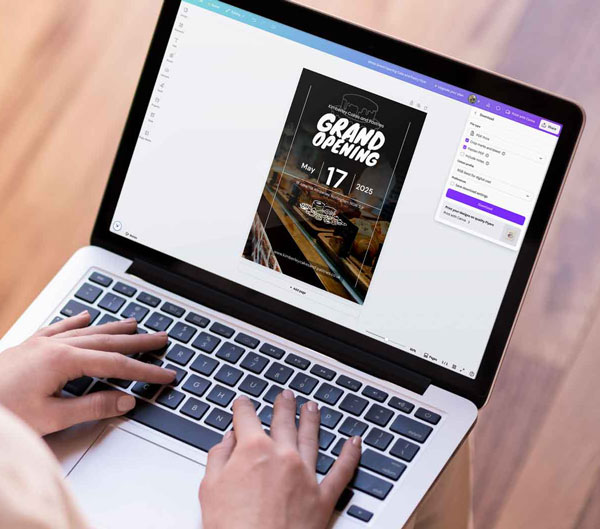
A print-ready PDF is a file your printer can put straight into production with minimal intervention, and without nasty surprises like white slivers on the edge, fuzzy photos, or text getting clipped.
If it helps, think of it as the difference between “it looks right on my screen” and “it will trim, fold and print exactly as intended”.
What makes a PDF “print-ready”?
A print-ready PDF normally includes:
1) Correct finished size (trim size)
Your document needs to match the final printed size (for example A5, DL, 210 × 210 mm, etc.). If the page size is wrong, everything that follows becomes guesswork.
2) Bleed (so colour goes right to the edge)
Bleed is extra artwork that extends past the trimmed edge, so tiny cutting tolerances do not create white borders. A common standard is 3 mm bleed (or 0.125 in / 1⁄8″).
3) Safe area (so important content does not get cut)
Keep key text, logos and important details comfortably inside the trim line. Many printers recommend at least 3 to 5 mm as a minimum safe zone.
4) High resolution images (so it prints sharp)
Photos should typically be 300 dpi at final size for standard print.
5) Fonts handled properly (so nothing reflows)
A print-ready PDF should not rely on your printer having your fonts installed. (Most export workflows embed fonts automatically, but it’s worth checking the PDF renders correctly when you open it.)
6) Sensible colour handling (so colours do not shift unexpectedly)
Canva is designed around RGB (screen) colour values in the editor, and print is CMYK. That conversion can shift bright colours, especially saturated blues and greens.
How to prepare a print-ready PDF in Canva
Step 1: Set the right document size
- Start your Canva design at the final trim size you want printed (A5, A4, business card size, etc.).
- If your job needs bleed, plan for it before you design. We suggest using 3 mm.
Step 2: Turn on bleed guides (so you can design accurately)
In Canva you can show a bleed boundary in the editor (often shown as a dashed guide). Some guidance notes Canva’s bleed guide is fixed at 0.125 inches (1⁄8″).
Practical tip: extend backgrounds and images past that guide so they truly bleed.
Step 3: Keep text and logos away from the edge
Before exporting, do a quick scan:
- Anything critical should sit inside the safe zone, not hugging the edge.
Step 4: Check image quality
- Zoom in and click images to check quality indicators.
- If you have any doubt, swap in a higher-resolution image before export. (A PDF cannot magically improve a low-res photo.)
Step 5: Export as PDF Print (not PDF Standard)
In Canva:
- Click Share
- Choose Download
- File type: choose PDF Print
This matters because PDF Print is intended for printing and is commonly associated with 300 dpi output, while “standard” PDF options are aimed at screen viewing.
Step 6: Tick crop marks and bleed
When exporting, enable Crop marks and bleed so we know exactly where to trim and has the bleed included.
Note: some guidance indicates this option may be unavailable on Canva’s free plan.
Step 7: Consider “Flatten PDF” if your design uses effects
If your file includes lots of transparency, shadows, overlays or complex elements, flattening can prevent odd rendering issues in print workflows.
Step 8: Open the PDF and do a quick preflight
Open the exported PDF in a proper PDF viewer (ideally Adobe Acrobat Reader) and check:
- Crop marks are visible (if you selected them)
- Backgrounds extend beyond the trim
- No text is too close to the edge
- Nothing has shifted, swapped fonts, or pixelated
The most common Canva print mistakes (quick warning list)
- Exporting PDF Standard instead of PDF Print
- No bleed, leading to white edges after trimming
- Using very bright RGB colours and being surprised when they print duller or darker
- Low-resolution photos scaled up too far
Final Checks & Submitting to Melbourne Print
Now that your print-ready PDF has been saved to your desktop, open the PDF and double check that everything looks right. Look over your fonts and font sizes, check the margins and bleeds for any white spaces or text that may be cut off and be sure that your photos look clean and crisp. You can also do a quick scan for spelling or grammatical errors.
We’re here to help you with all your print needs.